Win11Debloat: A 40k-Star PowerShell Script for Stripping Bloatware, Telemetry, and AI Features from Windows
A lightweight PowerShell script that removes pre-installed bloatware, disables telemetry and tracking, kills Copilot and Recall, and cleans up the Windows 10/11 interface. One command, no installation required. 40.5k stars and 15 releases say the demand is real.
A simple, lightweight PowerShell script to remove pre-installed apps, disable telemetry, as well as perform various other changes to customize, declutter and improve your Windows experience.
A fresh Windows installation in 2026 comes with Copilot, Recall, Click to Do, Bing web search baked into the Start menu, telemetry phoning home, widgets on the taskbar, ads in the Settings app, Candy Crush in the Start menu, and a collection of pre-installed apps that most people never asked for. Microsoft continues to add features that blur the line between operating system and advertising platform, and users continue to look for ways to undo it.
Win11Debloat is the most popular open-source answer to this problem. It's a single PowerShell script that strips out bloatware, disables telemetry, removes AI features, and cleans up the interface — all through an interactive menu or command-line parameters. No installation, no dependencies beyond PowerShell, fully reversible. At 40.5k stars, it's one of the highest-starred Windows utility repos on GitHub.
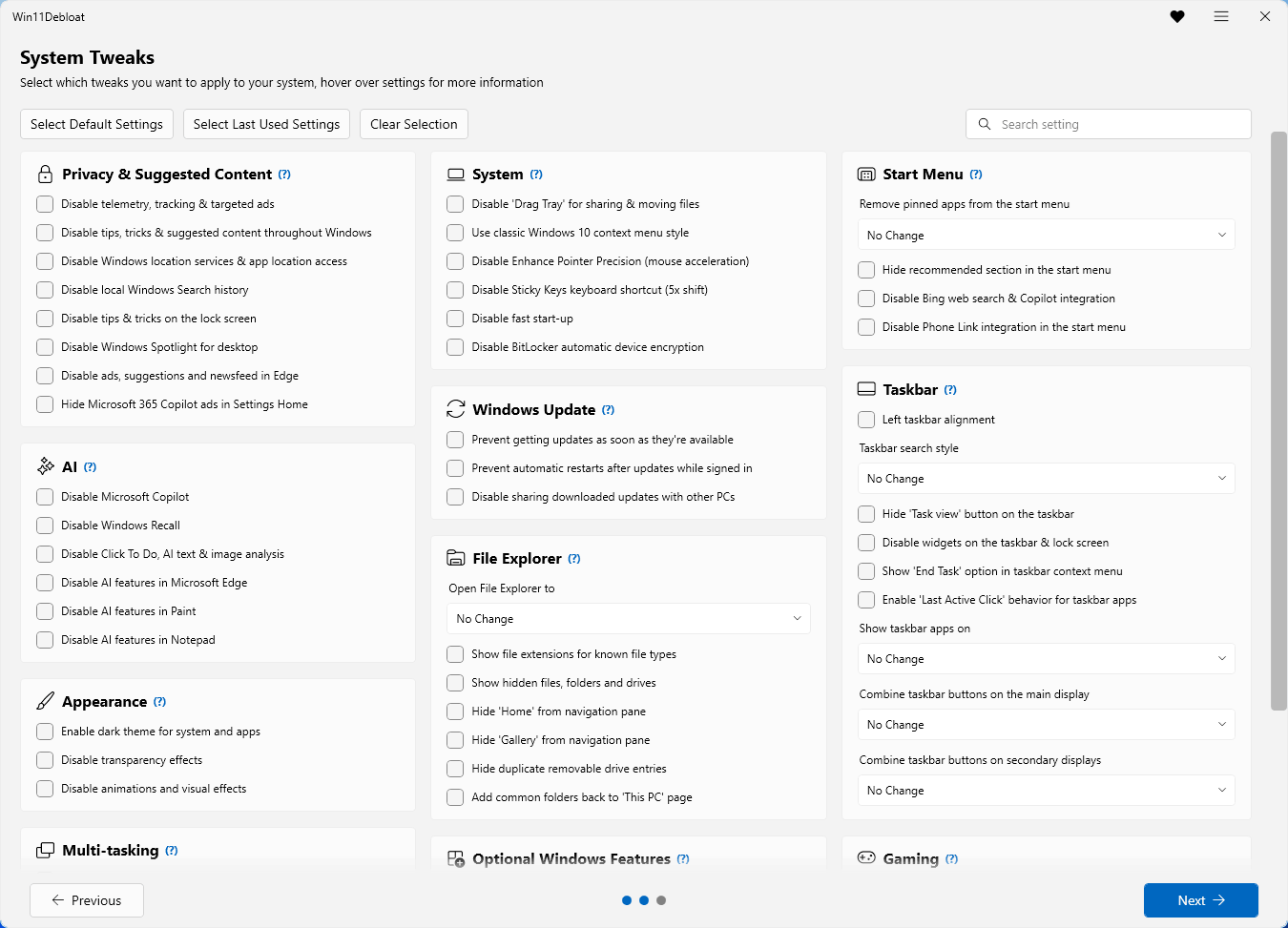
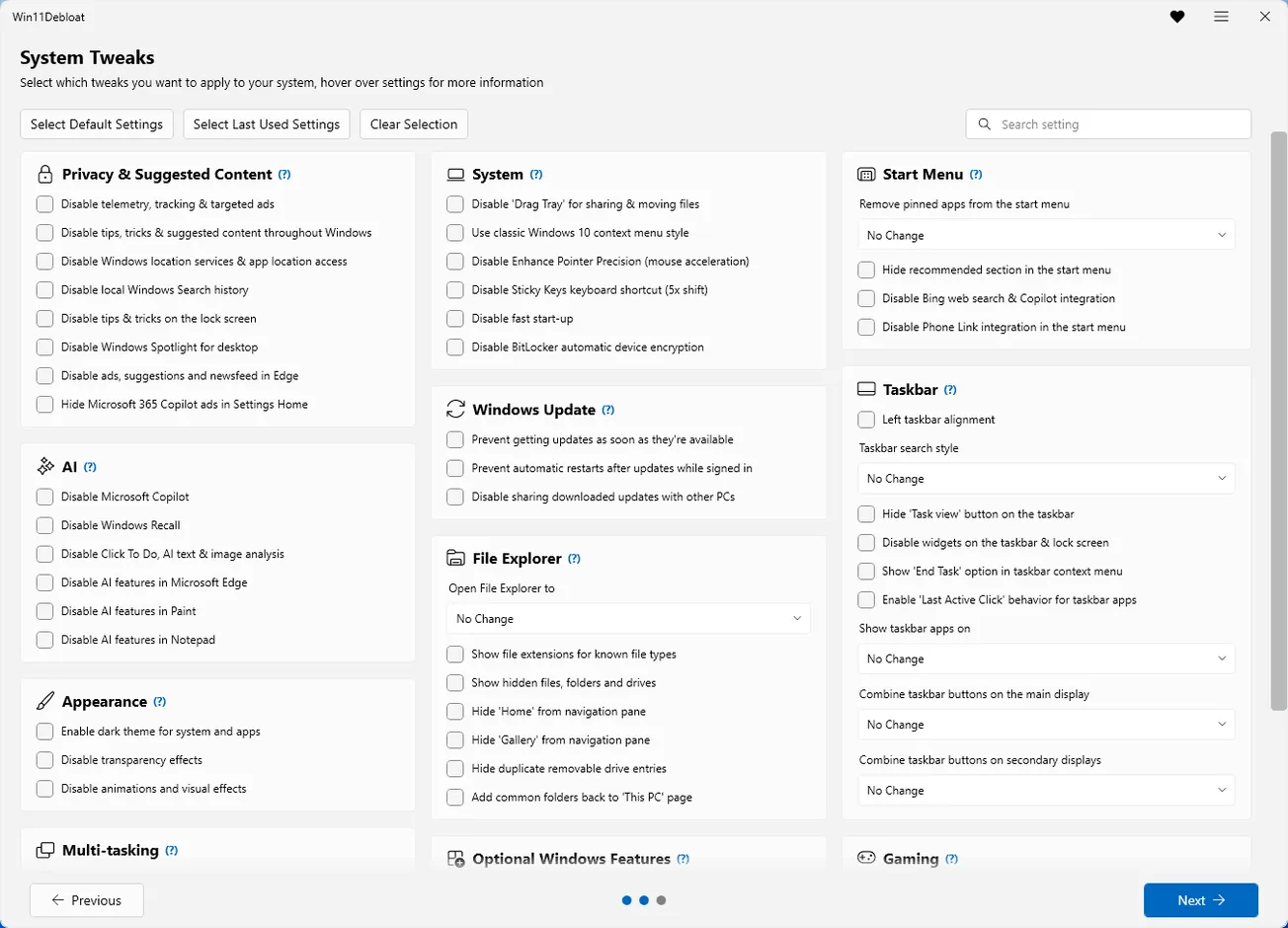
// What It Does
// How to Run It
The quickest method is a single PowerShell command that downloads and runs the script automatically:
Alternatively, download the ZIP from the releases page and double-click Run.bat. For automation and deployment, the script supports command-line parameters: -RunDefaults applies recommended settings and removes the default app selection, while -RunDefaultsLite applies the same settings without removing any apps. Individual features can be toggled via parameters for fully unattended operation.
// Feature Breakdown
| Category | What It Covers |
|---|---|
| App Removal | 60+ Microsoft and third-party apps, customizable selection, start menu pin clearing |
| Telemetry | Diagnostic data, activity history, app-launch tracking, targeted ads, Windows Spotlight |
| AI / Copilot | Copilot, Recall, Click to Do, Bing AI in search, Cortana, AI in Edge/Paint/Notepad |
| Taskbar | Left alignment, button labels, search icon, taskview, widgets, End Task option |
| File Explorer | Default location, hidden files, extensions, Gallery/Home removal, OneDrive/3D Objects hiding |
| Personalization | Dark mode, disable animations, mouse acceleration off, sticky keys off, old context menu |
| Start Menu | Recommended section, Phone Link integration |
| Other | Xbox Game Bar, Fast Start-up, Modern Standby network drain |
// What It Doesn't Remove (by Default)
This is an important detail that separates Win11Debloat from more aggressive debloating tools. The default removal list targets genuinely unwanted apps (Candy Crush, Solitaire, Clipchamp, defunct Bing apps, third-party promotional installs) while leaving functional system apps alone. Users can opt into removing additional apps through the interactive menu or custom app lists.
// Advanced / Enterprise Features
Beyond consumer use, the script includes features for sysadmins and deployment scenarios. Sysprep mode applies changes to the Windows Default user profile, so all new users on the machine inherit the debloated settings automatically. You can also apply changes to a different user account instead of the currently logged-in one. Combined with the command-line parameters for unattended operation, this makes Win11Debloat viable for imaging workflows and fleet deployments.
// Reversibility
All changes made by Win11Debloat can be reverted. Registry tweaks are standard key modifications that can be undone, and almost all removed apps can be reinstalled from the Microsoft Store (with the exception of the Microsoft Store itself and Xbox Speech-to-Text Overlay). The project wiki includes a full guide on reverting changes. This reversibility lowers the risk significantly compared to tools that make irreversible system modifications.
// Considerations
Windows updates can undo changes. Major Windows feature updates have a history of re-enabling telemetry settings, reinstalling removed apps, and resetting interface customizations. You may need to re-run the script after significant updates. This isn't a Win11Debloat limitation — it's a Windows behavior.
Not a security hardening tool. Win11Debloat focuses on bloatware removal, privacy settings, and interface cleanup. It doesn't harden the OS against attacks, configure firewalls, or implement security baselines. For enterprise security hardening, look at tools like Microsoft Security Compliance Toolkit or CIS Benchmarks.
Some removals have dependencies. A few apps that can be optionally removed have subtle dependencies. The Xbox UI framework (Xbox.TCUI) is required by the Microsoft Store and some games. The Get Help app is needed for certain Windows 11 troubleshooters. The script documents these relationships, but users should read the descriptions before removing optional apps.
PowerShell execution policy. Running the script requires either administrator privileges to execute unsigned PowerShell scripts, or temporarily setting the execution policy to Unrestricted. The one-liner method handles this automatically, but the manual method requires Set-ExecutionPolicy Unrestricted -Scope Process. This is standard for PowerShell scripts but worth noting for security-conscious users.
// Bottom Line
Win11Debloat does exactly what its name says, and it does it well. The interactive menu makes it accessible to non-technical users, the command-line parameters make it automatable for sysadmins, and the safe defaults mean you're unlikely to break anything if you just run it with the recommended settings. The AI/Copilot removal features are particularly timely as Microsoft continues to push these features more aggressively with each update.
With 40.5k stars, 15 releases, and active maintenance through late 2025, it's the most battle-tested debloating script in the Windows ecosystem. If you've ever spent 30 minutes after a fresh Windows install manually uninstalling Candy Crush, disabling Bing search, and hiding widgets, Win11Debloat does all of that in one command.