GitHub: https://github.com/joedefen/dwipe
dwipe
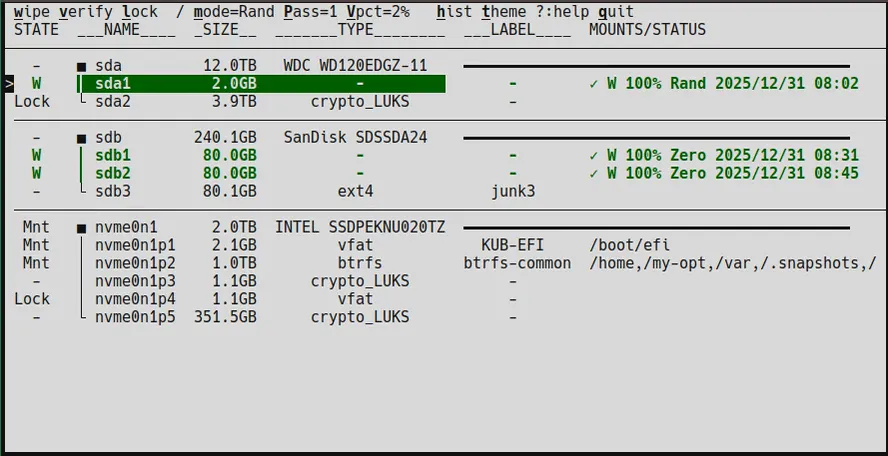
dwipe is a tool to wipe disks and partitions for Linux to help secure your data. dwipe aims to reduce mistakes by providing ample information about your devices during selection.
Quick Comparison
| Feature | dwipe | nwipe | shred | dd |
|---|---|---|---|---|
| Interactive TUI | ✓ | ✓ | ✗ | ✗ |
| Multiple simultaneous wipes | ✓ | ✗ | ✗ | ✗ |
| Hot-swap detection | ✓ | ✗ | ✗ | ✗ |
| Device/partition locking | ✓ | ✗ | ✗ | ✗ |
| Persistent wipe state | ✓ | ✗ | ✗ | ✗ |
| Resume interrupted wipes | ✓ | ✗ | ✗ | ✗ |
| Wipe operation logging | ✓ | ✗ | ✗ | ✗ |
| Mount detection/prevention | ✓ | ✓ | ✗ | ✗ |
| Fast Statistical sampling verification | ✓ | ✗ | ✗ | ✗ |
| Multi-pass wipe standards | ✗ | ✓ | ✓ | ✗ |
| Full sequential verification | ✗ | ✓ | ✓ | ✓ |
| Certificate generation | ✗ | ✓ | ✗ | ✗ |
Modern drives are reliably wiped with one pass of zeros; just zero once in almost all cases for best, fastest results.dwipe offers Multi-pass and Rand modes as "checkbox" features, but those provide no additional security on drives manufactured after 2001 (NIST SP 800-88).V2 Features
- Statistical verification - Automatic or on-demand verification with intelligent pattern detection:
- Fast-fail for zeros (fails on first non-zero byte)
- Statistical analysis for random data to check for evidence of randomness
- Smart sampling: divides disk into 100 sections, randomly samples each section to sample entire disk
- Unmarked disk detection: can verify disks without filesystems and auto-detect if zeros/random
- Configurable verification percentage - Choose thoroughness: 0% (skip), 2%, 5%, 10%, 25%, 50%, or 100% (cycle with V key, persistent preference)
- Multi-pass wipe support - Choose 1, 2, or 4 wipe passes with alternating patterns for improved data destruction (cycle with P key, persistent preference)
- Inline wipe confirmation - Confirmation prompts appear below the selected device (no popup), keeping full context visible
- Configurable confirmation modes - Choose your safety level: single keypress (Y/y), typed confirmation (YES/yes), or device name (cycle with c key)
- Enhanced wipe history - Detailed log viewer (h key) shows wipe history with UUIDs, filesystems, labels, and percentages for stopped wipes
- Active wipe highlighting - In-progress wipes displayed in bright cyan/blue with elapsed time, remaining time, and transfer speed (0-100% write, 101-200% verify)
- Persistent user preferences - Theme, wipe mode (Rand/Zero/Rand+V/Zero+V), confirmation mode, verification %, and locked devices persist across sessions (saved to
~/.config/dwipe/state.json) - Individual partition locking - Lock individual partitions to prevent accidental wiping (previously only whole disks could be locked)
- Full terminal color themes - Complete themed color schemes with backgrounds, not just highlights (cycle with t key)
- Visual feedback improvements - Mounted and locked devices appear dimmed; active wipes are bright and prominent
- Smart device identification - Uses UUID/PARTUUID/serial numbers for stable device tracking across reconnections
- Screen-based navigation - Modern screen stack architecture with help screen (?) and history screen (h)
- Direct I/O to Disk - Wiping is done with direct I/O which is fast and avoid polluting your page cache. Writer threads are given lower than normal I/O priority to play nice with other apps. This makes stopping jobs fast and certain.
- Improved Handling of Bad Disks. Now detects (sometimes corrects) write failures, slowdowns, excessive no progress, and reports/aborts hopeless or hopelessly slow wipes.
V2.x Features
Features added since V2 deployed (may not be in latest demo):
- Port and Serial number. Press
pto toggle whether port and serial number is show; it adds another line per disk and you may want to use it selectively.
Requirements
- Linux operating system (uses
/dev/,/sys/,/proc/interfaces) - Python 3.8 or higher
- Root/sudo privileges (automatically requested when you run the tool)
- lsblk utility (usually pre-installed on most Linux distributions)
Installation
- Recommended (using pipx):
pipx install dwipe - Verify installation:
dwipe --help - Uninstall:
pipx uninstall dwipe
Quick Start
- Install
dwipe - Run
dwipefrom a terminal (sudowill be requested automatically) - Observe the context-sensitive help on the first line
- Navigate with arrow keys or vi-like keys (j/k)
- Press ? for full help screen
Features
dwipe provides comprehensive disk wiping capabilities with safety features:
- Smart device display - Shows disks and partitions with labels, sizes, types, and vendor/model information to help identify devices correctly
- Safety protections - Prevents wiping mounted devices, detects overlapping wipes, supports manual disk locking
- Hot-swap detection - Updates the device list when storage changes; newly added devices are marked with ^ to make them easy to spot
- Multiple simultaneous wipes - Start wipes on multiple devices at once, with individual progress tracking and completion states
- Flexible wipe modes - Choose between Rand, Zero, Rand+V (with auto-verify), or Zero+V (with auto-verify). Multi-pass modes alternate patterns for improved data destruction
- Persistent state tracking - Wipe status survives reboots; partially wiped (s) and completed (W) states are stored on the device
- Device filtering - Filter devices by name/pattern using regex in case of too many for one screen
- Stop capability - Stop individual wipes or all wipes in progress
- Disk locking - Manually lock disks to prevent accidental wipes (locks hide all partitions)
- Dry-run mode - Practice using the interface without risk using
--dry-run
Note: dwipe shows file system labels, and if not available, the partition label. It is best practice to label partitions and file systems well to make selection easier.Usage
Simply run dwipe from the command line without arguments: dwipe
Color Legend
dwipe uses color coding to provide instant visual feedback about device and operation status:
- Dimmed (gray) - Mounted or locked devices (cannot be wiped)
- Default (white) - Ready to wipe, idle state, or previously wiped (before this session)
- Bright cyan/blue + bold - Active wipe or verification in progress (0-100% write, v0-v100% verify)
- Bold yellow - Stopped or partially completed wipe
- Bold green - ✅ Successfully completed wipe in THIS session (ready to swap out!)
- Dimmer green - ✅ Successfully completed wipe in previous session .
- Bold orange - Newly inserted (hot-swapped) device
- Bold red - Destructive operation prompts (wipe confirmation)
Color Themes
dwipe supports multiple color themes for improved visibility and aesthetics.
Available themes:
default- Terminal Default (basic ANSI colors)dark-mono- Dark Mono (almost-white on almost-black with bright colors)light-mono- Light Mono (almost-black on almost-white with bright colors)solarized-dark- Solarized Dark palettesolarized-light- Solarized Light palette (for light terminal backgrounds)gruvbox- Gruvbox Dark palettenord- Nord palette
Changing themes:
- Press t from the main screen to open the theme preview screen
- The theme screen shows color examples for each color purpose (DANGER, SUCCESS, WARNING, etc.)
- Press t while on the theme screen to cycle through available themes and preview them live
- Press ESC or ENTER to return to the main screen
- Selected theme is saved and persists across sessions
Theme features:
- Yellow/warning color for stopped wipes (state s) - highly visible even when not selected
- Red/danger color for wipe confirmation prompts
- Coordinated color palettes designed for terminal readability
Device State Values
The STATE column shows the current status of each device:
| State | Meaning |
|---|---|
| - | Device is ready for wiping |
| ^ | Device is ready for wiping AND was added after dwipe started (hot-swapped) |
| Mnt | Partition is mounted or disk has mounted partitions - cannot be wiped |
| N% | Wipe is in progress (shows percentage complete, 0-100%) |
| vN% | Verification is in progress (shows percentage complete, v0-v100%) |
| STOP | Wipe or verification is being stopped |
| s | Wipe was stopped - device is partially wiped (can restart or verify) |
| W | Wipe was completed successfully (can wipe again or verify) |
| Lock | Disk is manually locked - partitions are hidden and cannot be wiped |
| Unlk | Disk was just unlocked (transitory state) |
Available Actions
The top line shows available actions. Some are context-sensitive (only available for certain devices):
| Key | Action | Description |
|---|---|---|
| w | wipe | Wipe the selected device (requires confirmation) |
| v | verify | Verify a wiped device or detect pattern on unmarked disk (context-sensitive) |
| s | stop | Stop the selected wipe in progress (context-sensitive) |
| S | Stop All | Stop all wipes in progress |
| l | lock/unlock | Lock or unlock a disk to prevent accidental wiping |
| q or x | quit | Quit the application (stops all wipes first) |
| ? | help | Show help screen with all actions and navigation keys |
| h | history | Show wipe history log |
| / | filter | Filter devices by regex pattern (shows matching devices + all active wipes) |
| ESC | clear filter | Clear the filter and jump to top of list |
| m | mode | Cycle wipe mode: Rand, Zero, Rand+V, Zero+V (saved as preference) |
| P | passes | Cycle wipe passes: 1, 2, or 4 (saved as preference) |
| V | verify % | Cycle verification percentage: 0%, 2%, 5%, 10%, 25%, 50%, 100% (saved as preference) |
| c | confirmation | Cycle confirmation mode: Y, y, YES, yes, device name (saved as preference) |
| d | dirty limit | Cycle dirty page limit: 0, 500, 1000, 2000, 4000 MB (saved as preference) |
| D | dense | Toggle dense/spaced view (saved as preference) |
| t | themes | Open theme preview screen to view and change color themes |
Wipe Modes
dwipe supports four wipe modes (cycle with m key):
- Zero - Fills the device with zeros (multi-pass alternates random/zero patterns, ending on zeros)
- Zero+V - Same as Zero, but automatically verifies after wipe completes (if verify % > 0)
- Rand - Fills the device with random data (multi-pass alternates zero/random patterns, ending on random)
- Rand+V - Same as Rand, but automatically verifies after wipe completes (if verify % > 0)
The +V suffix indicates automatic verification after wipe completion. Without +V, you can still manually verify by pressing v on a wiped device.
Note: Multi-pass wipes (2 or 4 passes) alternate between zero and random patterns to ensure different bit patterns physically overwrite the disk, ending on your selected mode.
Resuming Stopped Wipes
Stopped wipes (state s) can be resumed by pressing w on the device:
How Resume Works:
- Preserves the original wipe mode (Rand or Zero) from when the wipe was started
- Uses the current passes setting to determine how much more to write
- Continues from the exact byte offset where it stopped (rounded to buffer boundary)
- Smart validation ensures interrupted wipes resume with correct pattern integrity
Resume Examples:
| Stopped At | Current Passes | What Happens |
|---|---|---|
| 50% | 1 pass | Resumes: writes remaining 50% |
| 150% (1.5 of 4 passes) | 1 pass | Already complete (150% > 100%) |
| 150% (1.5 of 4 passes) | 4 passes | Resumes: writes 2.5 more passes (150% → 400%) |
| 100% (1 pass complete) | 2 passes | Resumes: writes pass 2 (100% → 200%) |
Benefits:
- Change passes setting before resuming to finish faster (reduce) or add more passes (increase)
- No need to restart from beginning
- Progress marker updated every 30 seconds, so resume works even after crashes or power loss
- Automatic validation prevents corrupted final patterns
Verification Strategy
dwipe uses intelligent verification with statistical analysis and fast-fail optimizations:
Smart Sampling:
- Divides disk into 100 equal sections
- Randomly samples configurable percentage (0%, 2%, 5%, 10%, 25%, 50%, 100%) from EACH section
- Ensures complete disk coverage even with 2% verification
- Change verification percentage with V key (saved as preference)
Pattern Detection:
- Zero verification: Fails immediately on first non-zero byte (fast!)
- Random verification: Statistical analysis of byte distribution
- Tests if byte distribution is uniform (all byte values 0-255 appear fairly equally)
- Fast-fails periodically if non-random pattern detected
- Checks for evidence of randomness to distinguish from structured data
Verification Modes:
- Automatic verification (after wipe): Use a mode with
+Vsuffix (Rand+V or Zero+V) and set verify % > 0 - Manual verification (press v): Verify previously wiped devices or detect pattern on unmarked disks (requires verify % > 0)
- Unmarked disk detection: Can verify disks with no filesystem to detect if all zeros or random
- If passes, writes marker as if disk had been wiped
- Useful for detecting pre-wiped drives or verifying manufacturer erasure
Verification States:
- ✓ (green checkmark) - Verification passed
- ✗ (red X) - Verification failed
- No symbol - Not verified
- During verify: vN% shows progress (v0% to v100%)
Why statistical sampling is better than sequential:
- 2% verification with 100 sections provides better coverage than 2% sequential read
- Detects problems faster (could hit bad sector in early sections)
- Statistical analysis actually validates randomness (sequential can't do this)
- Much faster than 100% sequential verification
Progress Information
When wiping a device, dwipe displays:
- Elapsed time - Time since wipe started (e.g., 1m18s)
- Remaining time - Estimated time to completion (e.g., -3m6s)
- Write rate - Current throughput (e.g., "45.2MB/s")
- MaxSlowDown - Ratio of Fastest/Slowest write speed (e.g, ÷2). If over threshold, the write job stops.
- MaxWriteDelay - Largest write delay detected (e.g., 𝚫122ms). If over threshold, the write job stops.
Persistent State
The W (wiped) and s (partially wiped) states are persistent across reboots. This is achieved by writing metadata to the first 16KB of the device:
- First 15KB: zeros
- Next 1KB: JSON metadata (timestamp, bytes written, total size, mode, verification status)
When a device with persistent state is displayed, additional information shows:
- When it was wiped and the completion percentage
- Verification status: ✓ (passed), ✗ (failed), or no symbol (not verified)
The Help Screen
When ? is typed, you can see the available keys and some obscure settings no seen elsewhere.
Navigation
You can navigate the device list using:
- Arrow keys - Up/Down to move through the list
- Vi-like keys - j (down), k (up), g (top), G (bottom)
- Page Up/Down - Quick navigation through long lists
Device Filtering
The / key activates incremental search filtering with vim-style behavior:
How it works:
- Press / to start filtering
- Type your regex pattern - the device list updates as you type (real-time filtering)
- Your cursor position is shown with | in the header
- Arrow keys, Home/End, and Backspace work for editing
- ENTER to accept the filter
- ESC to cancel and restore the previous filter
Filter Examples:
The filter supports regex patterns. Here are some useful examples:
/sda           # Show only sda and its partitions
/sd[ab]        # Show sda, sdb and their partitions
/nvme          # Show all NVMe devices
/nvme0n1p[12]  # Show only partitions 1 and 2 of nvme0n1
/usb           # Show devices with "usb" in their labels
Press ESC from the main screen to clear the filter and return to showing all devices.
Note: Invalid regex patterns are ignored - the filter stays at the last valid pattern while you type.
Security Considerations
Important limitations:
dwipesupports multi-pass wiping with alternating patterns, but does not implement specific DoD 5220.22-M or Gutmann certified pattern sequences- More than adequate for personal and business data that doesn't require (antiquated) certified destruction
- NOT suitable for classified, top-secret, or highly sensitive data requiring certified pattern-specific wiping with compliance certificates
- SSD considerations:
- Modern SSDs use wear-leveling and may retain data in unmapped blocks
- TRIM/DISCARD may prevent complete data erasure
- For SSDs, consider manufacturer's secure erase utilities for maximum security
- Random mode may not provide additional security over zeros on SSDs
Best practices:
- Verify device labels and sizes carefully before wiping
- Use the Lock feature to protect critical disks
- Test with
--dry-runfirst if unsure - Consider encryption for sensitive data as the primary security measure
Troubleshooting
dwipe won't start
- Error: "cannot find lsblk on $PATH" - Install
util-linuxpackage - Permission denied -
dwipeautomatically requests sudo; ensure you can use sudo
Terminal display issues
- Corrupted display after crash - Run
resetorstty sanecommand - Colors don't work - Ensure your terminal supports colors (most modern terminals do)
Wipe issues
- Can't wipe a device - Check the STATE column:
- Mnt - Unmount the partition first:
sudo umount /dev/sdXN - Lock - Press l to unlock
- Busy - Another partition on the disk is being wiped
- Mnt - Unmount the partition first:
- Wipe is very slow - Normal for large drives; check write rate to verify progress
- Wipe seems stuck - Most likely due to bad disks; Direct I/O makes progress almost constant on good disks.
Dealing with Bad or Failing Disks
dwipe includes built-in protections for problematic storage devices:
Automatic Error Handling. When encountering disk errors during wiping:
- Consecutive write errors: Wipe aborts after 3 consecutive failed writes
- Total error threshold: Wipe aborts after 100 total write errors
- Automatic retry: On write failure, device is automatically closed and reopened (transient error recovery)
- File descriptor recovery: Bad FD states are detected and handles are refreshed
Stall and Slowdown Detection. dwipe monitors write performance and can abort problematic operations:
- Stall detection: Aborts if no progress for 5 minutes (configurable)
- Slowdown detection: Measures baseline speed during first 5 seconds, aborts if speed drops below threshold (e.g., 1/4 of baseline)
- Progress tracking: Continuous monitoring ensures writes are actually reaching the device
If a Wipe Gets Stuck... If a wipe appears frozen or unresponsive:
- First attempt: Press s to gracefully stop the selected wipe
- Wait patiently: Some disk operations can take minutes to timeout at the kernel level
- If still stuck: Press S (Shift+s) to stop ALL wipes
- Last resort: If the interface is completely frozen:
- Press Ctrl-Z to suspend
dwipe - In the terminal, run:
sudo pkill -f "python.*dwipe" (targets only dwipe processes) - Run reset to restore terminal if display is corrupted
- Press Ctrl-Z to suspend
Preventing Issues with Problematic Media. For known bad disks or questionable hardware:
- Start with verification: Press v first to test readability
- Use lower speeds: Enable dirty page throttling (d key) to reduce I/O pressure
- Monitor system logs: Check dmesg -w in another terminal for disk errors
- Consider hardware issues: USB enclosures, cables, and controllers often cause issues
Common Disk Error Patterns
- USB connection drops: dwipe will detect and attempt recovery
- Bad sectors: Errors will be counted; job aborts if excessive
- Controller timeouts: Kernel may hang; stall detection should trigger
- Full disk: Write past end-of-device errors are handled gracefully
Recovery After Abort. If a wipe aborts due to disk errors:
- Device state shows s (stopped/partial)
- You can attempt to resume (w) - may succeed if error was transient
- Or verify (v) to see what was actually written
- Consider replacing the disk if errors persist
Note: Some disks are fundamentally broken and cannot be reliably wiped. dwipe will protect itself and your system, but cannot fix hardware failures.